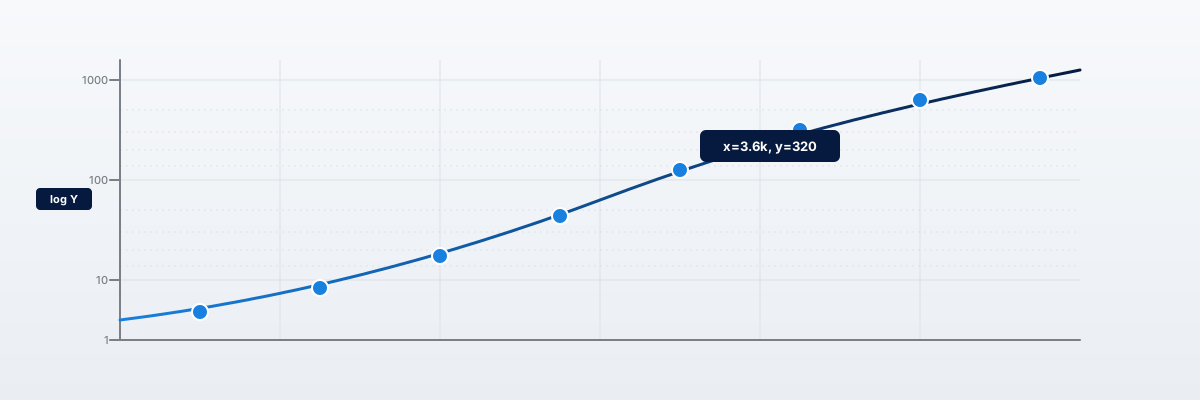
To extract data from a log-scale chart, calibrate at two visible powers of ten — say 10 and 1000 — type those real values, mark the axis as logarithmic, and click your points as usual. The digitizer does the log interpolation. The result is real values, not log values.
Log axes trip people up because the spacing looks wrong and the temptation is to “fix” it manually. Don’t. Calibrate correctly once and the four-step extraction works the same as on a linear chart.
The short answer
Two calibration points per axis. Pick visible powers of ten. Toggle the axis to log. Export.
That’s the entire method. Everything below is failure modes — skipping the toggle, calibrating between powers of ten, mixing log10 and natural log.
For the general workflow, see the pillar guide. This post zooms in on the log-axis edge cases.
Why log axes trip people up
Log axes compress orders of magnitude into equal pixel distances. 1 to 10 covers the same visible distance as 10 to 100.
A linear digitizer assumes values scale linearly between calibration points. Give it “1” and “1000” on a log axis treated as linear, and the midpoint reads as 500, not 31.6.
The fix: take log10 of calibration values, interpolate in log space, raise 10 to the result. Every digitizer worth using has this as an axis toggle.
The four-step method, applied to log
Same four steps. Two of them get a small adjustment.
- Upload the chart image (same as linear).
- Place points on each data value (same).
- Calibrate the axes — for log, set the type to “log” and enter the real values (e.g., 10 and 10000), not their logs.
- Export as CSV or XLSX (same).
Step 3 is where every log-extraction error lives. The mental model: you’re telling the tool “this pixel equals this real value.” Linear-vs-log spacing in between is a property of the axis type, not the calibration values.
Setting the axis to log
In DataFromChart, the axis type selector lives in the AXES layer alongside the calibration values. Pick “log” for the log axis, “linear” for the other. Most charts are semi-log — log on Y, linear on X.
No log toggle? Calibrate as linear, export, apply 10^value in a spreadsheet. The math is identical; the downside is the live preview shows linear-interpolated values until you exponentiate.
Worked example: an acoustic frequency response chart
Speaker frequency response: X 20 Hz to 20 kHz log, Y 60 to 110 dB SPL linear. The curve dips at 80 Hz, peaks at 3 kHz, rolls off above 15 kHz.
- Upload the PNG.
- Place points along the curve — every octave (20, 40, 80, …, 20480 Hz), plus extras where direction changes.
- Calibrate. X: start at 20, end at 20000, set to log. Y: start at 60, end at 110, leave linear.
- Export. X contains real frequencies — 20, 40, 80, etc. A row reads
80, 82.3meaning “82.3 dB at 80 Hz.” Overlay should match.
If X stays linear, the same point reads 60, 82.3 — the pixel midpoint between 20 and 20000 as linear. That’s the canonical log-extraction failure.
Try this on a real frequency response chart. Open the extractor, drop in the image, set X to log, and export. Two minutes start to finish, no install.
Semi-log vs log-log
Semi-log: one log axis. Log-log: two. Set each axis to its actual type.
Semi-log examples: bacterial growth, frequency response, exponential decay. Log-log: power laws, allometric scaling, particle size distributions, certain financial charts. Set both to log, calibrate each at two visible powers of ten. Extracted values are real in both columns.
For log-log spanning 4+ orders of magnitude, calibrate at the widest visible interval. 1-to-10000 is far more accurate than 10-to-1000.
Common mistakes
Three account for most log-extraction errors.
Calibrating between powers of ten
30 and 300 will work, but pixel positions of “30” and “300” on a log axis aren’t where the eye expects. Placement error at non-power-of-ten ticks is 2–3x higher because gridlines are drawn and labeled at the powers.
Always calibrate at 1, 10, 100, 1000, 10000 — whichever powers are visible as labeled ticks.
Forgetting to toggle the axis type
Produces data that “looks reasonable but is wrong.” A linear-calibrated log axis gives numbers in the right range with a smooth curve, just badly distorted. You won’t notice without overlay.
Always overlay. Curves should sit within a pixel or two. If they bend differently between calibration points, the axis type is wrong.
Mixing log10 and natural log
Most charts use log10. Some fields — physical chemistry, information theory — use ln. Visual spacing is the same; labels mean different things.
For ln, calibrate at two ln values (0 and 4.6 for ln(1) and ln(100)) and treat the axis as linear in those values. Exponentiate with e^value post-export. Cleanest: convert ln labels to actual values first, then calibrate as normal log10.
When the chart shows log values directly
Some charts plot log10(x) on a linear axis — ticks read 1, 2, 3 instead of 10, 100, 1000.
Calibrate as linear in those tick values. The extracted column is log10(x), not x — apply 10^value post-export. Mark this in your output so the next person doesn’t double-exponentiate.
FAQ
Can I extract from a log chart if my tool doesn’t support log axes?
Yes. Calibrate as linear in log-value space (1, 2, 3 instead of 10, 100, 1000), export, apply 10^value. Output identical to native log support.
How accurate is log-axis extraction compared to linear?
No less accurate — math is identical, just in log space. Errors come from human mistakes, not the algorithm.
What if the chart has log on both axes (log-log)?
Set both to log, calibrate at two visible powers of ten. Extracted values are real in both columns.
How do I tell if an axis is log or linear?
Look at tick spacing. If 10 to 100 matches 100 to 1000, it’s log. If 10 to 20 matches 90 to 100, it’s linear.
Can I calibrate a log axis at 1 and 100?
Yes, if both are visible and labeled. Two orders of magnitude is plenty. 1-to-10000 is slightly more robust, but 1-to-100 is fine.
Does DataFromChart support log axes?
Yes — toggle the type in AXES and enter real values. See the pillar guide and the log axes section in tricky cases.
My exported data is the right shape but wrong magnitude — what happened?
You calibrated as linear when the axis is log. Shape is preserved because pixel order is, but values are linearly interpolated. Re-calibrate with the axis set to log.
CTA
Open the extractor, upload a log chart, toggle the axis to log before exporting. The result is real values you can drop into any analysis tool without post-processing. No login required.
Try it on your own chart
Create a free account to upload an image or PDF, calibrate the axes, and export CSV or XLSX. Or start with a built-in sample without signing in.
Open the extractor