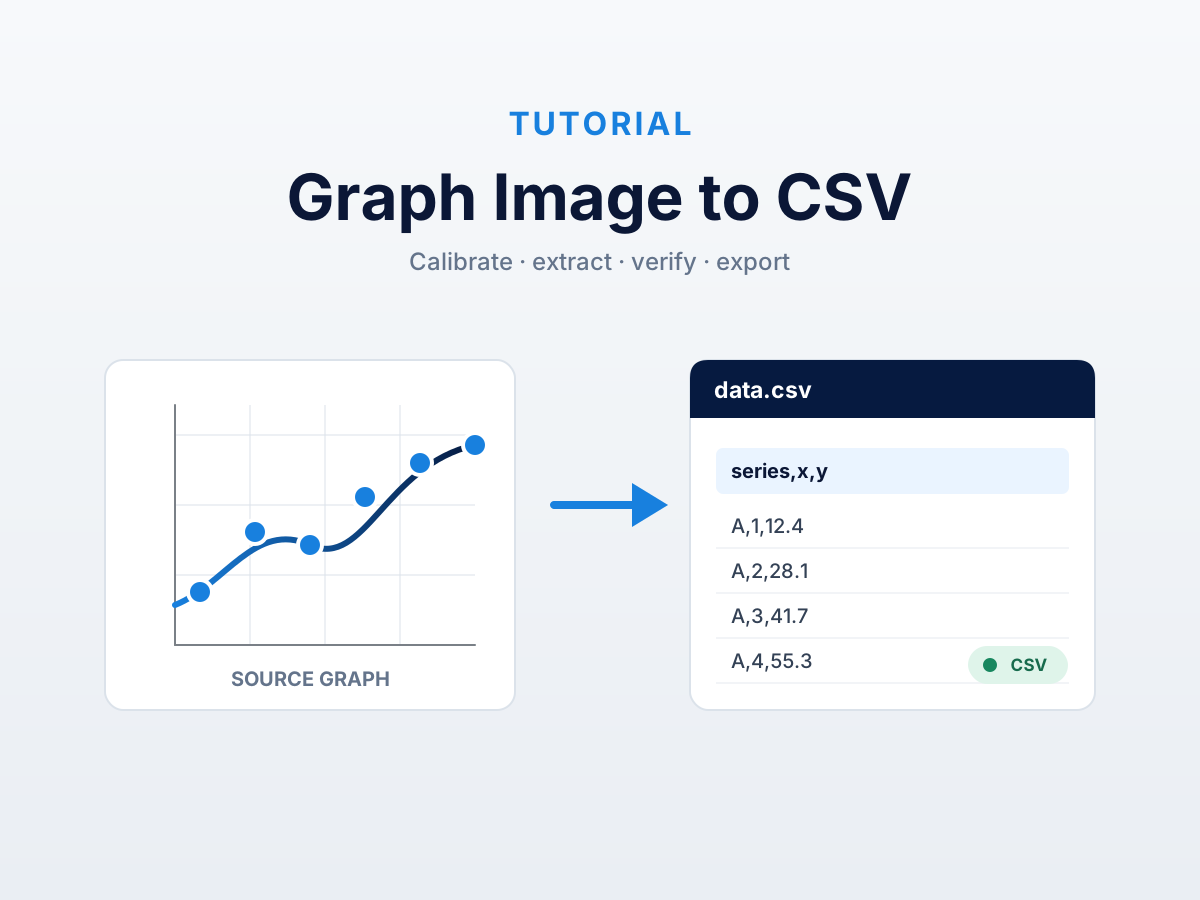
To extract data from a graph image, import the image into a chart digitizer, identify the chart and axis types, calibrate the axes using visible tick values, collect the plotted points, inspect the result against the source, and export the recovered table.
The method works because calibration maps pixel positions in the image to values on the chart. The quality of the result depends on readable ticks, correct scale selection, careful calibration, and how clearly the data marks can be distinguished from labels and gridlines.
The extraction workflow
1. Import the clearest available source
Use the original image or PDF when possible. A screenshot can work, but repeated resizing and JPEG compression can blur thin lines, small markers, decimal points, and minus signs.
Crop away captions and unrelated page content while keeping the full plot area, tick marks, tick labels, axis titles, and legend. If the chart is rotated, correct the rotation before calibration.
DataFromChart accepts PNG, JPEG, SVG, and PDF. A PDF opens a page picker before the selected page is converted into the working image. See the PDF chart extraction guide for that path.
2. Identify the chart and axis types
Determine whether the chart is a line, scatter, bar, column, or area chart and whether each axis is linear, logarithmic, date-based, or categorical. Do not infer the scale only from spacing: read the tick labels and any axis notation.
DataFromChart includes a preparation step for confirming the chart and axis types. Its current workflow targets familiar rectangular charts. For polar, ternary, map, or other coordinate systems, choose a tool that explicitly supports that calibration type; the WebPlotDigitizer alternatives comparison lists several.
3. Calibrate the axes
For a rectangular chart, place two calibration references on known x-axis values and two on known y-axis values. Enter the values exactly as printed and choose the correct scale type for each axis.
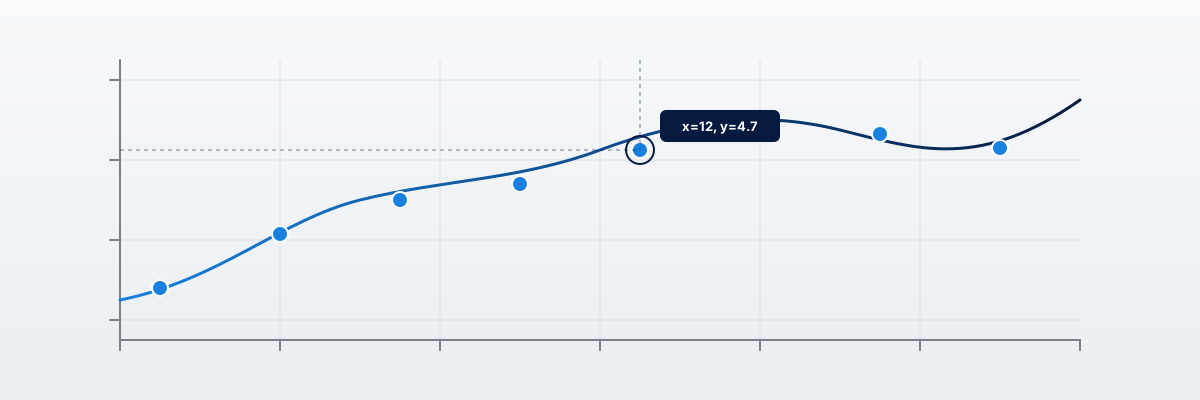
Use tick marks that are clearly visible and well separated. A longer calibration span makes any placement error smaller relative to the calibrated range. After calibration, inspect a third labelled tick that was not used: the displayed coordinate should agree with the printed value.
For logarithmic axes, enter the actual tick values and select logarithmic calibration. Do not treat evenly spaced powers of ten as a linear numeric sequence. For date axes, preserve the date format and confirm that the axis direction is correct.
4. Collect and label the data points
Manual placement is the most direct method: click the centre of each marker, the relevant point on a curve, or the value edge of a bar. Zoom in when a mark is close to a gridline or another series.
For a series with a distinct colour, colour-based extraction can identify matching pixels across a selected region. Adjust the colour tolerance while checking which parts of the image are included. Labels, axes, and gridlines in a similar colour may also be selected and need to be excluded or corrected.
AI-assisted extraction can propose axes and points for supported charts. Treat the proposal as editable input: move, add, or remove points before export. Small text, overlapping series, patterned fills, and compressed images can make automatic interpretation less reliable.
Work through multi-series charts one series at a time and give each series a stable label. This preserves the relationship between points and legend entries in the exported table.
5. Inspect and export
Before downloading the data:
- inspect the calibration against unused tick marks;
- compare each recovered series with the visible marks or curve;
- check that series labels match the legend;
- confirm that negative signs, decimal places, dates, and logarithmic scales were interpreted correctly; and
- look for duplicate or stray points introduced by automatic extraction.
DataFromChart exports CSV, TSV, XLSX, and JSON. Its XLSX output can include the source chart beside the recovered data, which makes later review easier. CSV and TSV are portable choices for R, Python, spreadsheets, and other analysis tools.
Try the workflow before creating an account. Open a prepared sample in the extractor. Register when you want to upload your own chart.
How calibration converts pixels to values
For a linear axis, a point is converted by interpolating between two calibrated positions:
value = ((point_px - start_px) / (end_px - start_px))
        * (end_value - start_value) + start_value
For a logarithmic axis, interpolation happens in logarithmic space before the result is converted back to the original scale. Date axes use the same positional idea with time values.
This mapping explains why axis selection and calibration placement matter. A precisely placed data point cannot compensate for an incorrectly calibrated axis.
Difficult cases
Multiple series
Extract and label one series at a time. Similar colours, overlapping markers, and shared line segments can confuse automatic methods. Use the legend and visible markers to separate series, then inspect each group independently.
Low-resolution or compressed images
When the marks and gridlines occupy the same few pixels, their centres may be ambiguous. Look for the original PDF, SVG, or higher-resolution image. Enlarging a poor raster image can make placement easier to see, but it does not restore information lost from the source.
Logarithmic axes
Confirm which axis is logarithmic and enter the printed tick values. A semi-log chart has only one logarithmic axis; a log-log chart has two. See the log chart extraction guide for worked setup details.
Stacked bars and area charts
A stacked segment represents the difference between two visible boundaries, not necessarily the distance from zero. Capture the relevant lower and upper boundaries and calculate the segment value explicitly.
Dense scatter plots
Overlapping markers may hide the number of underlying observations. A digitizer can recover visible marker positions, but it cannot reliably reconstruct points that the image itself does not distinguish. Document that limitation with the extracted data.
Cropped or broken axes
Do not assume a cropped axis begins at zero. Calibrate from printed tick values that remain visible. A broken axis needs separate interpretation because one continuous pixel-to-value mapping may not describe the whole plot.
Choosing a chart digitizer
Choose from the requirements the chart imposes:
- supported coordinate systems and axis scales;
- manual, colour-based, or AI-assisted extraction;
- browser, local-browser, or desktop processing;
- input support for images and PDFs;
- export format; and
- the ability to inspect and correct recovered points.
DataFromChart combines manual, colour-based, and optional AI-assisted methods for rectangular bar, column, line, scatter, and area workflows. The supported charts page summarises the current product scope. WebPlotDigitizer supports a broader set of coordinate systems; compare it with other options in the alternatives guide.
FAQ
Can I extract data from a graph image for free?
Yes. DataFromChart provides a prepared sample without sign-in and manual extraction for registered users without purchasing AI credits. WebPlotDigitizer, VectorGraph, Engauge, and other tools also publish free workflows with different capabilities and conditions.
How accurate is data extracted from a graph image?
There is no responsible universal percentage. The result depends on source resolution, scale selection, calibration placement, line or marker thickness, overlap, and correction. Check unused tick marks and compare recovered points with known source values whenever possible.
What if the graph uses a logarithmic scale?
Select logarithmic calibration for the relevant axis and enter two printed tick values. Verify another tick after calibration. Do not apply a linear mapping to evenly spaced powers of ten.
Can I extract data from a hand-drawn chart?
Calibration can still map positions to values if the axes have known reference points, but irregular ticks, line widths, and marker placement limit what the image can support. Record that the source is approximate.
Can I extract data from a 3D chart?
Perspective breaks the simple two-dimensional mapping used by chart digitizers. If the original data or a two-dimensional version is unavailable, any recovered value needs additional assumptions that should be documented.
How do I extract data from a chart in a PDF?
DataFromChart can import a PDF and let you choose the relevant page. Other tools may also accept PDFs or require a page to be rendered as an image first. Keep the clearest available version and preserve the tick labels.
How should digitised data be cited?
Cite the original figure as the data source and identify the digitisation tool and version in the method. Record any manual corrections or interpretation choices that affect reproducibility.
Try it on your own chart
Create a free account to upload an image or PDF, calibrate the axes, and export CSV or XLSX. Or start with a built-in sample without signing in.
Open the extractor