To extract data from a scatter plot, click each dot for sparse plots (under ~50 points) or use color-based auto-extraction for dense ones. Calibrate two known values per axis, group by series, and export to CSV or XLSX. The dense workflow finishes in under three minutes regardless of point count.
Scatter is the chart type where manual-vs-auto matters most. A 200-point scatter takes 25 minutes to click and 90 seconds to color-extract. This post covers both modes and when to switch.
The short answer
Sparse (under ~50 points): click each dot.
Dense (50+): color-based auto-extraction, one pass per color, tolerance tuned to catch dots but miss gridlines.
Multi-series: each color is implicitly a series; auto-extraction labels them for you.
For the general workflow, see the pillar guide. This post is scatter-specific.
When to switch from manual to auto
Manual scales linearly with point count. Auto is constant time — picking color and tuning tolerance takes the same effort whether the plot has 30 points or 3000.
Rule of thumb: 50 is the crossover.
| Points | Recommended method | Typical time |
|---|---|---|
| Under 20 | Manual | 1-3 min |
| 20-50 | Manual (auto if multi-color) | 3-8 min |
| 50-200 | Auto with manual cleanup | 2-5 min |
| 200+ | Auto | 90 sec - 3 min |
Below 20, the overhead of picking color and setting tolerance isn’t worth it. Above 50, manual is the slow path. Between 20 and 50, pick whichever feels faster — usually manual unless the chart has three or more distinct colors.
The four-step method, tuned for scatter
Same four steps. Steps 2 (placement) and 4 (export) get scatter-specific tweaks.
- Upload the chart image.
- Place points — manually for sparse, color-based for dense. One series at a time.
- Calibrate two known values per axis at the widest visible ticks.
- Export — group by series so each color comes out labeled.
Key discipline: one series at a time. A multi-color scatter extracted as one undifferentiated cloud is much less useful than the same plot with three labeled groups. Cheaper to do at extraction than to recover post-hoc.
Step 2 in detail: manual placement
Click each dot at its visual center. Zoom in — 3 pixels off on a 1000-pixel chart is 0.3% baked-in error.
For overlapping dots, place one point per visually distinct cluster center. A “blob” with 2–3 markers should be 2–3 points only if resolvable; otherwise mark as one and document the ambiguity.
Group points by series as you go. Red first → “treatment”, blue → “control”, and export preserves it.
Step 2 in detail: color-based auto-extraction
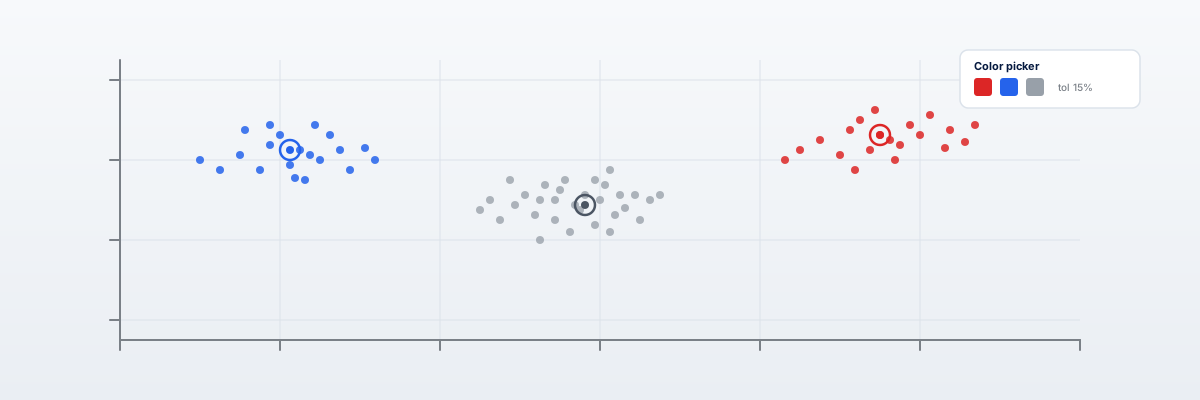
Pick the series color, set tolerance, and the tool snaps points along every matching cluster. DataFromChart’s picker uses HSV distance — tolerance is “how different still counts, in percent.”
Start at 15%. Missing dots (anti-aliased edges, overlaps)? Raise to 20–25%. Grabbing tick marks, gridlines, or text? Lower to 8–12%.
One pass per color. A three-cluster scatter takes three picks; each pass is a separate series.
Worked example: a 200-point gene expression scatter
A published genomics scatter. Three clusters: “upregulated” (red), “downregulated” (blue), “non-significant” (gray). X: log2 fold change -8 to +8. Y: -log10(p-value) 0 to 20. Roughly 200 points, gray cluster densest in the center.
Step 1: upload
Crop tightly. Don’t crop axis labels.
Step 2: extract by color
Three passes:
- Red. Click a clearly red dot. Tolerance 15%. Catches ~40 points. Inspect: a few cluster centers have only one point where you can see two overlapping markers — normal for color-based extraction.
- Blue. Same procedure. ~50 points.
- Gray. Tricky because the cluster is densest and gridlines are also gray-ish. Drop tolerance to 8%. If axes get picked up, mask with a crop or clean up post-pass.
Total: about 4 minutes including inspection.
Step 3: calibrate
X: start at -8, end at +8. Y: start at 0, end at 20.
Step 4: export
XLSX gives three sheets or one sheet with a “series” column. The latter is more common and easier to filter. Output: 200 rows, 3 columns, ready for analysis.
Manual extraction of the same plot takes ~25 minutes with comparable accuracy. Auto dominates when count is high and colors are distinct.
Run this on a real scatter plot. Open the extractor, upload a multi-color scatter, use the color picker for each series. Three minutes start to finish on a 200-point plot.
Handling overlapping points and clusters
Overlap is scatter’s intrinsic limit. The chart hides information the moment two markers occlude; no tool recovers what isn’t visible.
Use jittered scatter when you control the source. Won’t help when digitizing someone else’s, but if you’re producing for an audience that may digitize back, jitter by 1–2% of the axis range.
Extract clusters as densities, not points. For UMAP, t-SNE, and similar, don’t recover every point. Extract a few representative points per cluster center. Realistic upper bound for high-density scatter.
For dense scatter where every point matters (regulatory submissions, replication studies), request the original data rather than digitize.
What to do when colors are similar
Three responses, in order of preference.
Tighten tolerance. Drop to 5–8%. Misses anti-aliased edges but won’t confuse series.
Pre-process. Crop legend and similar-colored text. Adjusting brightness/contrast before uploading sometimes separates near-identical series.
Fall back to manual for one series. Auto the easy series, click the ambiguous one. Faster than tuning tolerance on a chart where colors fundamentally overlap.
If two series share the exact same color (black-and-white print), auto can’t disambiguate. Manual only.
Per-series vs combined export
DataFromChart’s XLSX labels each group as a series, with the label in a third column alongside x and y. CSV uses the same structure: x, y, series.
Filtering is trivial. Excel: AutoFilter. Python: df[df['series'] == 'treatment']. R: subset(d, series == "treatment").
If your tool exports per-series files instead, concatenate with a label column added. Either format is correct.
FAQ
What’s the accuracy of color-based extraction on dense scatter?
On clean, color-distinct scatter, auto matches or slightly beats manual. Both cluster around 1–1.5% MAE on a 200-point three-color plot.
What if my scatter plot is black-and-white?
If both series are the same shade, color-based can’t separate them. Manual only, disambiguating by marker shape (circle vs triangle vs square). Most tools don’t auto-extract by shape.
How do I handle scatter plots with thousands of points?
Color-based still works — constant-time in dot count. Expect 2–5 minutes per color. Overlap dominates and recovered density is approximate. Treat as a density estimate, not a point list.
Can I extract regression/trend lines from a scatter plot?
Yes, as a separate pass. Click manually or color-pick if distinct. Export as its own series.
Does DataFromChart support per-cluster labels?
Yes. Group points (manual or color pass), assign a label. The label rides along as the series column. See the pillar guide.
What if the colors shift between regions (gradient scatter)?
Gradient defeats simple color extraction. Either treat each band as a separate series with tight tolerance, or extract all dots as one group and recover the third variable from manual annotation. Band-splitting is faster with 3–5 discrete bands.
How does this compare to ImageJ for scatter extraction?
ImageJ is general image analysis — powerful but multi-step with manual scale calibration. Dedicated digitizers (DataFromChart, WebPlotDigitizer) are 5–10x faster. See our WebPlotDigitizer alternatives roundup.
Can I export each scatter cluster to its own file?
Most digitizers export one combined file with a series column. Filter post-export to split — faster than re-running per cluster.
CTA
Open the extractor, upload a dense scatter plot, try color-based extraction on each cluster. A 200-point three-color scatter finishes in under three minutes including calibration and export. No login required. For the broader workflow, the pillar guide covers all four steps.
Try it on your own chart
Create a free account to upload an image or PDF, calibrate the axes, and export CSV or XLSX. Or start with a built-in sample without signing in.
Open the extractor