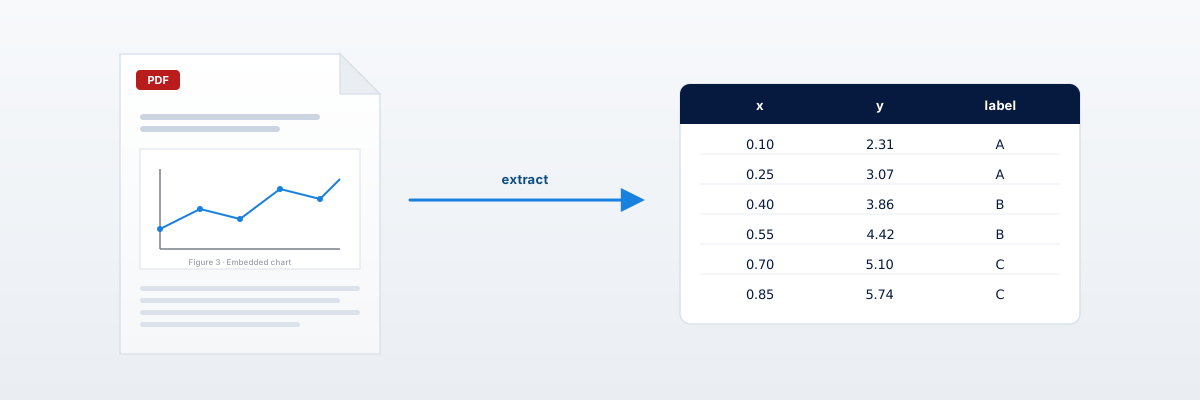
To extract data from a chart in a PDF, upload the PDF directly. DataFromChart’s in-app page picker shows every page; pick the one with your chart and it renders to an image in your browser. Then calibrate two known points per axis and export as CSV or XLSX. The PDF format itself never gets parsed — you work from a pixel image, but you don’t have to produce that image yourself.
This works because charts inside PDFs are either rasterized images or vector drawings that can be re-rendered to pixels losslessly. The page picker does that render client-side (via pdf.js) the moment you choose a page — the file never leaves your browser.
Getting the chart out of a PDF
The simplest path is to drop the PDF straight onto the upload zone and let the page picker handle the render. Below are the alternatives, in case you ever want to pre-render a page yourself for maximum sharpness. Sharpness drives extraction accuracy.
Upload the PDF directly (default). Drop the PDF onto the upload zone. The page picker lists every page; click the one with your chart. It re-renders that page to a crisp image in the browser — no external tool, no manual export step. One PDF and one page at a time.
Pre-render the page as PNG (optional, for very dense charts). If a figure has hair-thin lines or packed data and you want to push DPI higher than the in-app render, you can export the page yourself first: pdftoppm -r 300 paper.pdf out, or “Export As” → PNG in Preview at 300 DPI. This is a fallback, not a required step.
Snipping tool (quick, single value). macOS Screenshot (Cmd+Shift+4), Windows Snipping Tool, or a browser extension. Zoom the PDF to 200%+ before snipping so the captured pixels are dense. Crop tight. Handy when you just want one value and the PDF isn’t to hand as a file.
For thin lines or dense data, the direct upload is plenty in most cases; a manual 300-DPI pre-render only helps at the extreme end. For a quick scan of a single value, snipping is fine.
The walkthrough
A hypothetical Figure 3: “Atmospheric methane concentrations, 1990–2023.” Y axis 1700–1950 ppb, X axis 1990–2023, two lines: Mauna Loa and Cape Grim.
- Download the PDF. Figure 3 is on page 7.
- Drop the PDF onto the upload zone in DataFromChart. The page picker opens; click page 7. It renders to an image in your browser — no external export step. (If you ever need a higher-DPI render for a hair-thin figure, you can pre-render with
pdftoppm -r 300 -f 7 -l 7 paper.pdf methane -pngand upload that PNG instead, but it isn’t required here.) - Crop tight to the plot area, keeping tick labels visible.
- Place points. Two series, one at a time. Mauna Loa: click each X tick where the line crosses, group as “mauna_loa.” Then Cape Grim. For dense lines, use the color picker.
- Calibrate. X start at 1990, end at 2023. Y start at 1700, end at 1950.
- Export. XLSX contains a Data sheet with (year, ppb) per series, the chart embedded, and axis labels with units.
Elapsed: 3–4 minutes with auto-extraction, 8–10 minutes manual.
Have a PDF chart open right now? Drop the PDF straight into the extractor, pick the page, and you’ll be exporting in five minutes.
Common problems and fixes
Roughly 80% of what goes wrong with PDF charts.
The chart is a low-res raster, not vector
Some publishers rasterize all figures at submission. You’ll see it when you zoom into the PDF and the chart pixelates while text stays crisp. No fix from your side — the underlying pixels are already limited. The in-app render is as sharp as the source allows; if you want to squeeze out a little more, pre-render the page at 300 DPI before uploading. Either way, accept 2–3% noise and report the uncertainty.
The font in axis labels is hard to read
Anti-aliased text at small sizes blurs into gridlines. After the page renders, zoom in with panzoom so the tick label is unambiguous when picking calibration values. For a stubbornly tiny figure you can also pre-render the page at a higher DPI before uploading.
The chart spans two pages
Rare but real for full-width figures in two-column journals. Render both pages, stitch in an image editor, crop. Easier: find the high-res version in supplementary materials.
Multiple overlapping series of the same color
PDFs sometimes use partial transparency for overlays. The color picker struggles because overlap is a different color from either series. Extract each series with tight tolerance, then manually fix overlap points by clicking them individually.
The chart has a broken Y axis (split scale)
Two visible Y axes with different ranges. The pixel-to-value map isn’t continuous, so a single calibration won’t work. Extract the top and bottom halves separately, calibrate each, merge the CSVs.
The PDF is a scan of a printed paper
Older papers, especially pre-2000. Apply OCR for text if needed; for the chart, treat the scan as an image — same workflow as the rasterized case. Expect higher noise.
XLSX vs CSV for PDF-extracted data
XLSX is the better default for PDF charts, because the embedded image becomes a built-in audit trail. Six months from now, when someone asks “where did 1820 ppb come from?”, you open the XLSX, see the figure, verify visually. CSV gives numbers but throws away provenance.
For what’s inside the XLSX DataFromChart produces, see chart screenshot to Excel.
When this approach doesn’t work
Three cases where digitizing the PDF chart at all is the wrong move.
Data is already in a table nearby. Don’t digitize if you can extract the table. Use Tabula, Camelot, or copy-paste.
Supplementary materials contain raw data. Always check. Authors increasingly publish raw data, and a CSV in supplements beats any digitization.
Patient-level data from a Kaplan-Meier curve. The chart shows aggregate survival, not individual times-to-event. Reconstruction requires the Guyot et al. method — see our meta-analysis guide.
CTA
Drop your PDF into the extractor, pick the page, and you’ll have CSV or XLSX in under five minutes. The four-step workflow is identical to any other chart source — the page picker just handles the render for you.
FAQ
Can I upload the PDF directly? — Yes.
You can drop a PDF straight onto the upload zone. DataFromChart’s in-app page picker shows every page; pick the one with your chart and it renders to a pixel image in your browser (via pdf.js) — the file never leaves your machine. Chart digitizers ultimately work on pixels, and PDFs are documents of mixed text, vector graphics, raster images, fonts, and metadata, so a render to pixels has to happen somewhere. The page picker just does that render for you instead of making you export a PNG by hand. (One PDF, one page at a time — there’s no bulk “extract every chart in a PDF” mode.)
Optional: for a very dense figure where you want maximum DPI, you can pre-render the page to a high-resolution PNG yourself and upload that instead — but it isn’t required.
What’s the best PDF page resolution?
The in-app render is sized for crisp extraction out of the box, so for most charts you don’t need to think about DPI at all. If you do pre-render a page yourself for a dense figure, 300 DPI is the sweet spot. 600 DPI is fine but larger with no accuracy benefit. Below 200 DPI, thin lines and fine ticks lose definition.
Can I extract data from a scanned (photographed) PDF?
Yes, but expect higher noise. Skew, lighting, and JPEG artifacts hurt accuracy. Calibrate at the longest visible interval to minimize endpoint error.
Does the digitizer keep the PDF metadata?
No. It only sees pixels. Track the source PDF separately — for academic work, cite the original paper and figure number alongside extracted data.
What if the PDF is protected (DRM/password)?
If you have legitimate access and saw the figure, screenshot it. The digitizer doesn’t care about the source’s protection state.
How does this differ from extracting data from a chart image?
It doesn’t. The PDF case adds no manual upstream step — you upload the PDF and the page picker renders your chosen page to an image for you. Everything from “pick the page” onward is identical to working from an image. See the pillar guide.
Try it on your own chart
Create a free account to upload an image or PDF, calibrate the axes, and export CSV or XLSX. Or start with a built-in sample without signing in.
Open the extractor