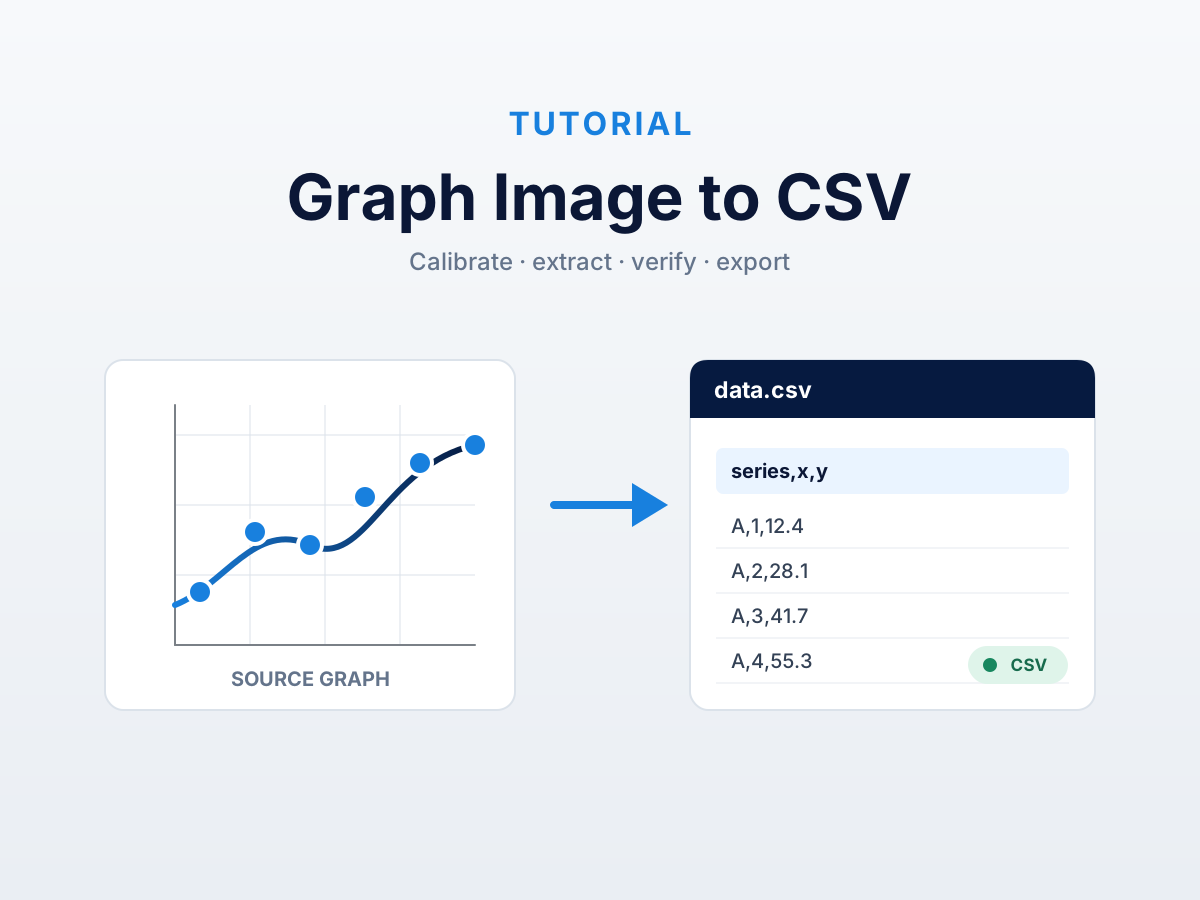
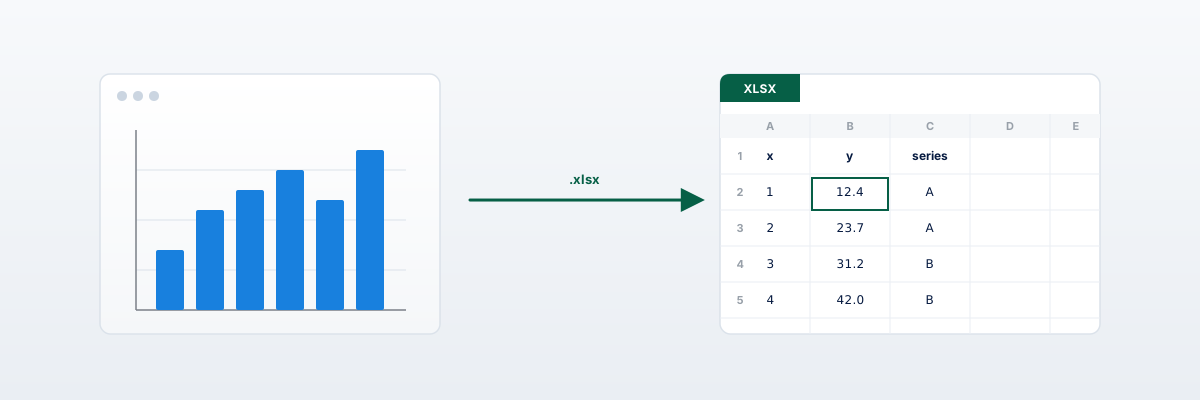
To convert a chart screenshot to Excel: upload the PNG, click each point, calibrate two known values per axis, export as XLSX. The output is a single workbook with the extracted (x, y) values plus the original screenshot embedded for verification. Under five minutes for a clean chart.
The right workflow when you need the numbers behind a chart you can only see — a slide deck screenshot, snipped dashboard, webinar replay frame. CSV throws away the provenance; XLSX with the chart embedded preserves it.
Why XLSX instead of CSV
CSV is just text — columns of numbers, nothing else. Six months from now, when a colleague asks “where did these numbers come from?”, the file has no answer.
XLSX with the chart embedded gives you three things in one file:
- The extracted data, in a sheet you can chart or pivot.
- The original screenshot, sitting next to the data so anyone can verify visually.
- Axis labels with units as cell values — columns aren’t “x” and “y” but “Year” and “ppb” or “Dose (mg/kg)” and “Response (%)“.
For one-off extractions you’ll consume yourself, CSV is fine. For anything shared or archived — XLSX wins. Especially in systematic reviews, where dual-reviewer extraction and methods reporting lean on having the source figure alongside the values. Detailed in our meta-analysis data extraction guide.
What’s inside the XLSX file
DataFromChart’s XLSX export contains a single sheet with a deliberate structure.
Header row. Column names from the axis labels you entered. If a series was named, that becomes a third column.
Data rows. One row per point. For multi-series charts, each row carries its series label — tidy format.
Embedded image. The original screenshot, sized to roughly half the page width, sits to the right of the data. Same PNG that was uploaded — no recompression.
Axis metadata. Two cells under the data block list X and Y axis labels with units and the calibration values entered.
The result opens cleanly in Excel, Google Sheets, LibreOffice Calc, and Numbers. Embedded images survive round-trips.
The walkthrough
A worked example: you watched a webinar, took a screenshot (Cmd+Shift+4 on Mac, Snipping Tool on Windows). Now you want the numbers.
Step 1. Confirm axes and tick labels are visible and crisp. If blurry — webinar players often downsample — find a higher-resolution replay. A 600px-wide capture of a chart with thin lines is roughly the lower bound for usable accuracy.
Step 2. Open the extractor. Drag the screenshot onto the upload zone. The chart appears with panzoom enabled.
Step 3. Place points. Click each data point — markers for line charts, dots for scatter. For a smooth line with no markers, use the color picker: pick the line’s color, set a tolerance, and the tool snaps points along every matching pixel. Same approach as WebPlotDigitizer, covered in our alternatives roundup.
Step 4. Calibrate the axes. Drag the X start line to a known tick and type the value. Drag the X end line to another known tick and type that value. Repeat for Y. Label the axes — “Year” and “ppb”. Labels propagate into the XLSX header row.
Step 5. Export. Click “Download XLSX.” The browser downloads a single file with data, embedded image, and axis metadata.
Have a chart screenshot on your desktop right now? Drop it into the extractor. You’ll have XLSX output in less time than it took to read this paragraph.
The same workflow for non-screenshot sources
XLSX export works identically regardless of source — screenshot, PDF page render, notebook export, photo of a printed paper.
- PDF charts: render the page as PNG first. PDF chart extraction guide.
- Generic graph images: our pillar guide covers the four-step method with tips for log axes, multi-series, and low-resolution inputs.
- Forest plots, Kaplan-Meier, dose-response: domain walkthroughs in the meta-analysis guide.
All produce XLSX with the same structure.
What the embedded chart image is good for
It isn’t decoration.
Audit trail. When someone challenges your numbers, the source figure is right there.
Dual-reviewer comparison. In systematic reviews, two reviewers extract independently, then reconcile. The XLSX lets reviewer 2 open reviewer 1’s file and immediately see what was extracted from what figure.
Six-month recall. You will forget which chart you extracted from. The embedded image is a memory that doesn’t decay.
Citation context. When the data goes into a paper or report, the figure-and-numbers pair is what gets cited.
Common screenshot pitfalls
Low-resolution capture. Older monitors or aggressive scaling produce small captures (under 500px wide). Below that, line thickness and tick labels merge. Mitigation: zoom the source in your browser before screenshotting. 200% browser zoom captured at default resolution beats 100%.
Compressed JPEG. Some recorders save as JPEG by default; artifacts mimic real data. Mitigation: set your screenshot tool to PNG.
Anti-aliased text bleeding into gridlines. At low resolution, tick labels can blur into adjacent gridlines. Mitigation: zoom in before screenshotting, or place calibration lines at the clearest ticks.
Cursor in screenshot. A pointer inside the plot area becomes a phantom data point. Mitigation: review before uploading; crop or recapture.
Dark themes. The auto-extract color picker needs series colors that differ noticeably from the background. Mitigation: increase tolerance, or fall back to manual clicking.
How the XLSX format compares to plain Excel
You can manually paste extracted data into Excel — about three minutes if you’ve done it before. The XLSX export does all of that in one click, with the embedded image positioned consistently and axis labels carried through automatically. For one extraction the manual approach is fine. For steady volume — a meta-analyst processing 30 studies — the export saves real time and removes a class of copy-paste errors.
Sharing the XLSX
XLSX with embedded images runs 100–500 KB depending on resolution — under most email and Slack limits. Very large extractions can hit 1–2 MB; share via cloud drive.
The file opens in every modern spreadsheet tool. We’ve round-tripped through Excel for Mac, Excel for Windows, Google Sheets, Numbers, and LibreOffice Calc with embedded image and data intact.
CTA
Open the extractor, drop the PNG in, click points, calibrate axes, export as XLSX. Self-contained file with both data and source figure — ready to share or archive.
FAQ
Can I export the embedded chart at a different size?
Not from the extractor today. Resize the screenshot before uploading if you need it smaller.
Will the XLSX work in Google Sheets?
Yes. Upload to Google Drive and open with Sheets. Data and embedded image both come through cleanly.
Can I edit the data after export and keep the chart embedded?
Yes. Standard XLSX. Edit data cells; the image stays at its anchor.
What if the chart has multiple series?
Each row includes a series label column. Tidy format — pivot in Excel for wide-format.
What about CSV — when should I use it instead?
CSV when the consumer is a script that doesn’t read XLSX, when the data is one of many and embedded images aren’t useful, or when file size needs to be minimal. For sharing, archiving, audit trails — XLSX wins.
Does the XLSX work with screen readers?
Data cells are standard Excel content, fully accessible. The embedded image is treated as a graphic — add alt text manually if accessibility is a hard requirement.
Can I batch-export multiple charts into one XLSX?
Not today. DataFromChart exports one chart per session. WebPlotDigitizer’s project files come closer, but output is CSV-only — see our tool comparison.
How does this work for charts in PDFs?
Render the PDF page as PNG, then follow the same workflow. Walkthrough in our PDF chart guide.
Is the extracted data accurate enough for publication?
On a clean source with careful calibration, yes — expect 0.5–2% MAE. For peer-reviewed work, validate against text-reported summary statistics and report the digitization method per PRISMA item 10. Details in our meta-analysis guide.
What’s the underlying conversion from pixels to values?
Linear interpolation between two calibration points per axis. For log axes, interpolation runs in log space. Full mechanics in our pillar guide.
Try it on your own chart
Create a free account to upload an image or PDF, calibrate the axes, and export CSV or XLSX. Or start with a built-in sample without signing in.
Open the extractor